
Patterns for leather goods
Draw pieces, add seams with holes for your pricking iron, print the pattern at full size or send it to a laser cutter or a cutting plotter.
Free, including for work you sell. Windows 10 and 11.
Features
Everything you need to get from a contour to a finished pattern you can cut and sew.
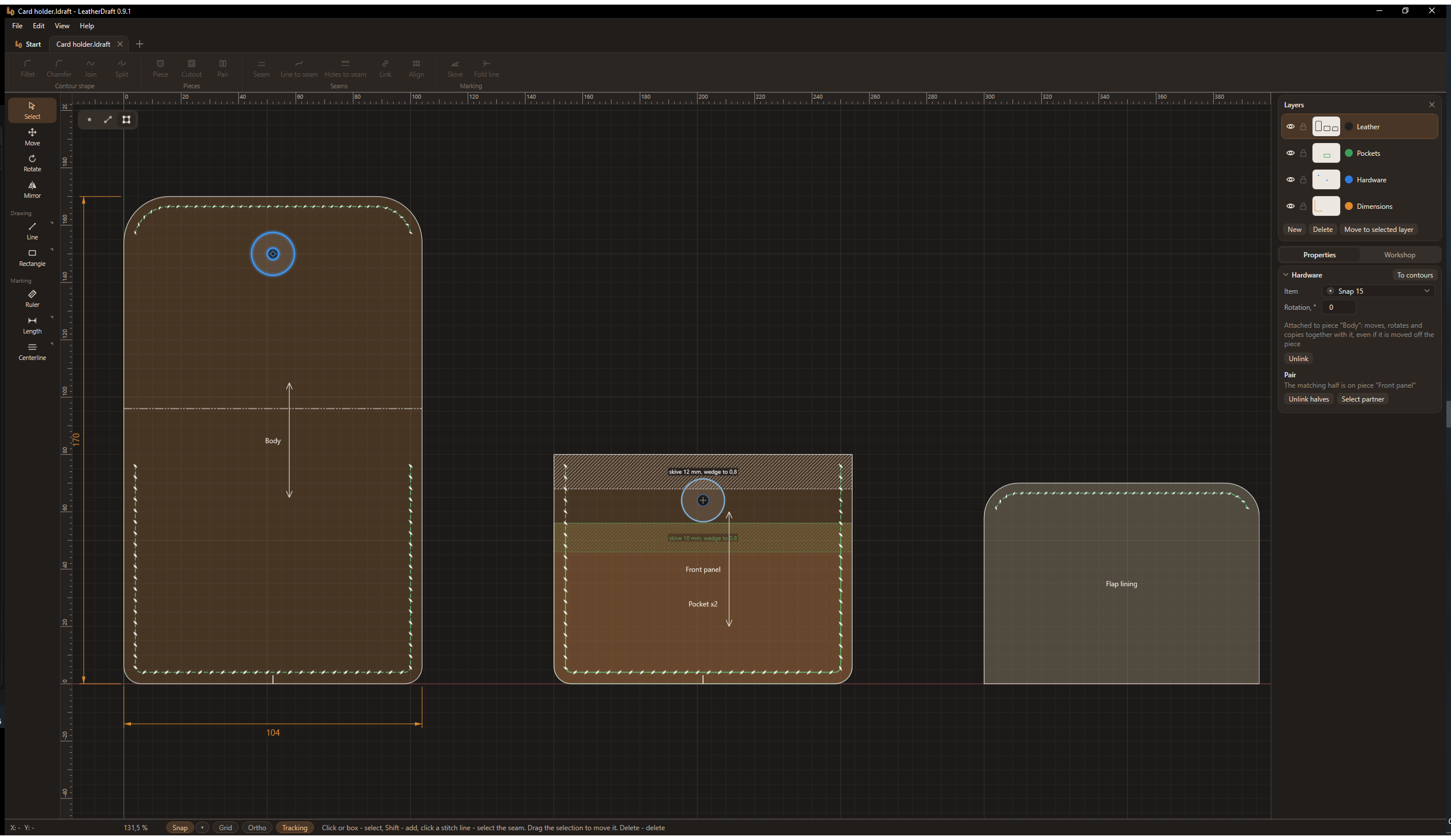
Pieces and seams
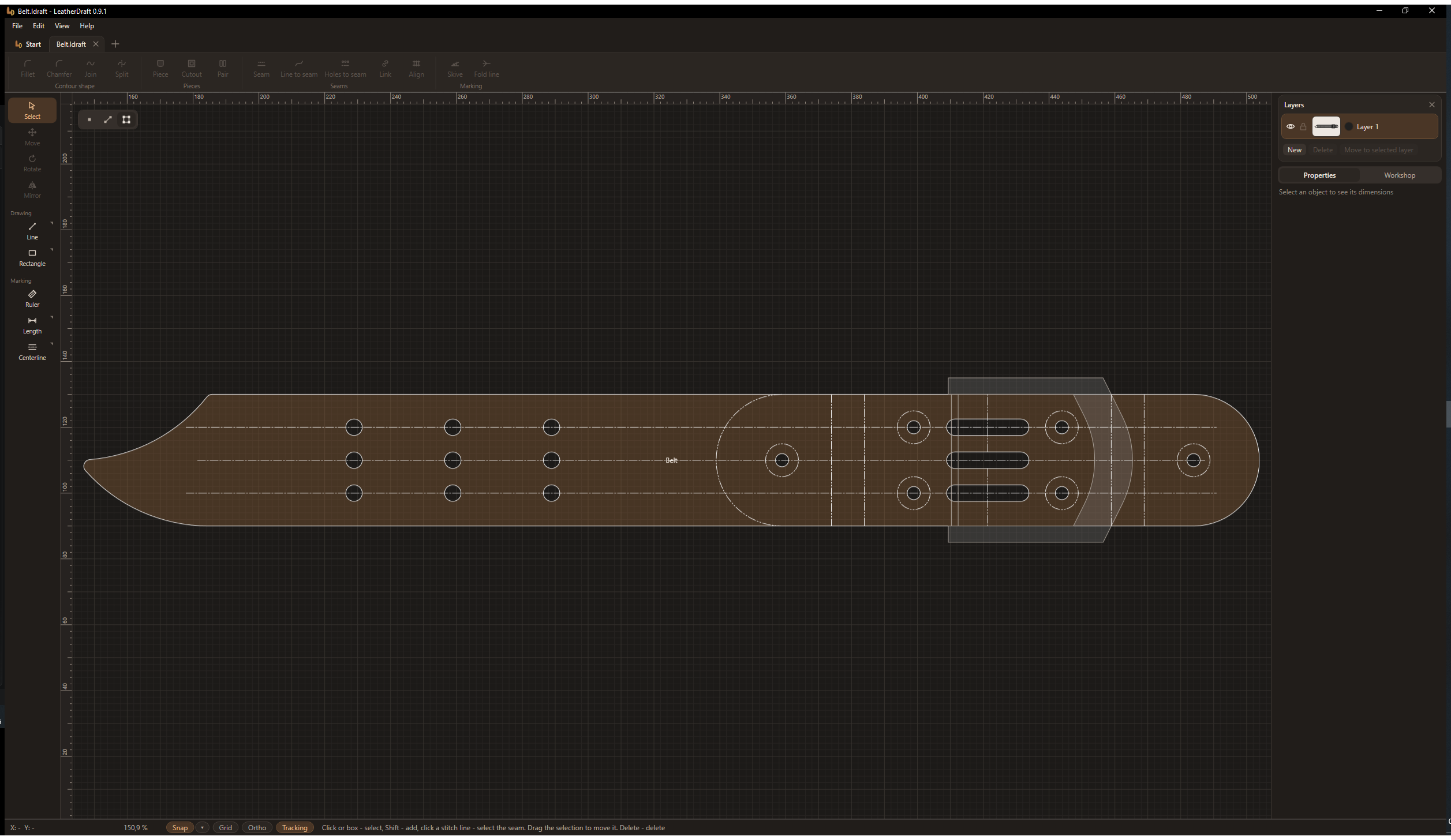
Pieces and cutouts, stitch lines with holes for your pricking iron and pitch. A seam along the whole edge or only along the edges you need.
Linked seams
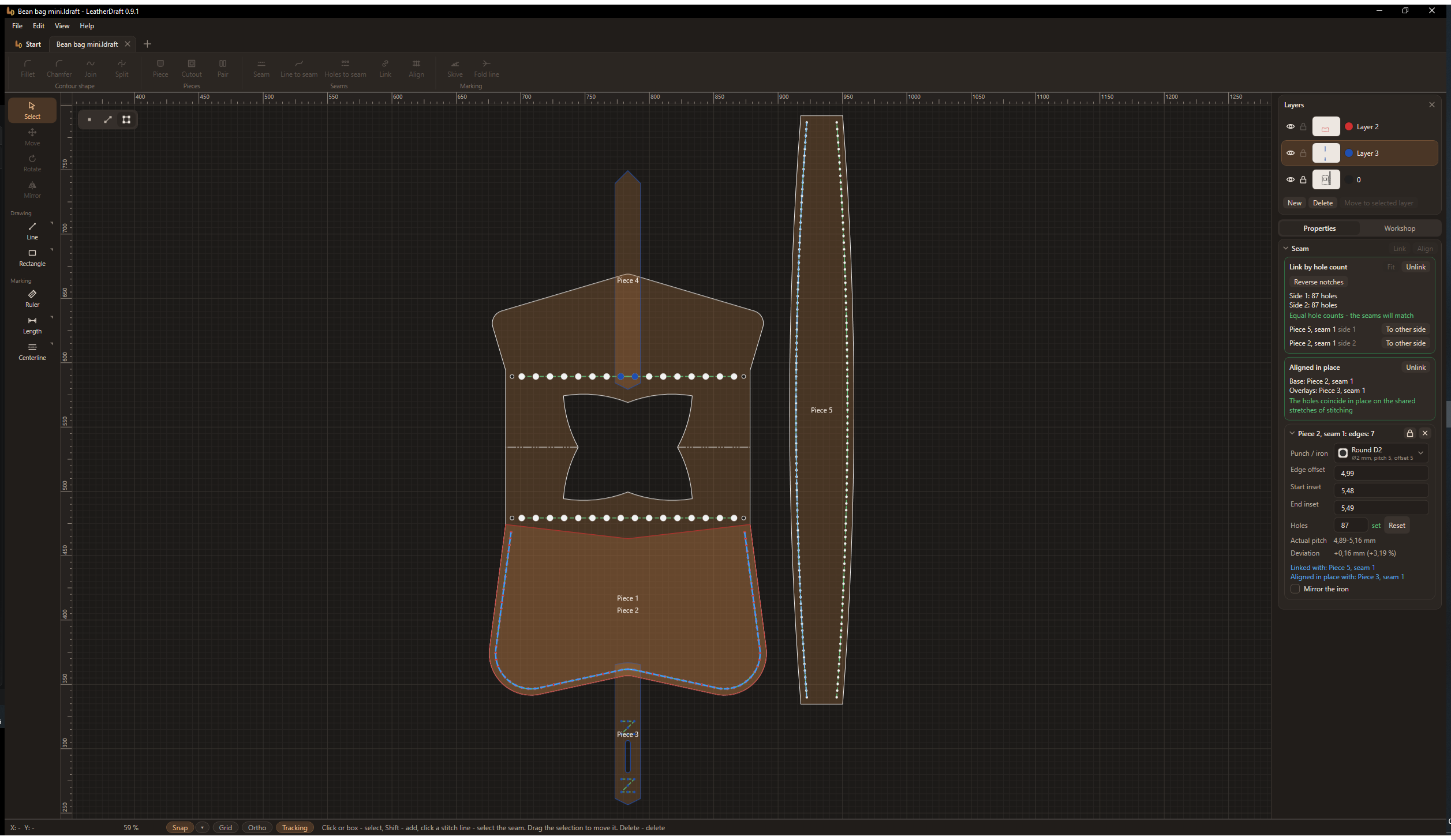
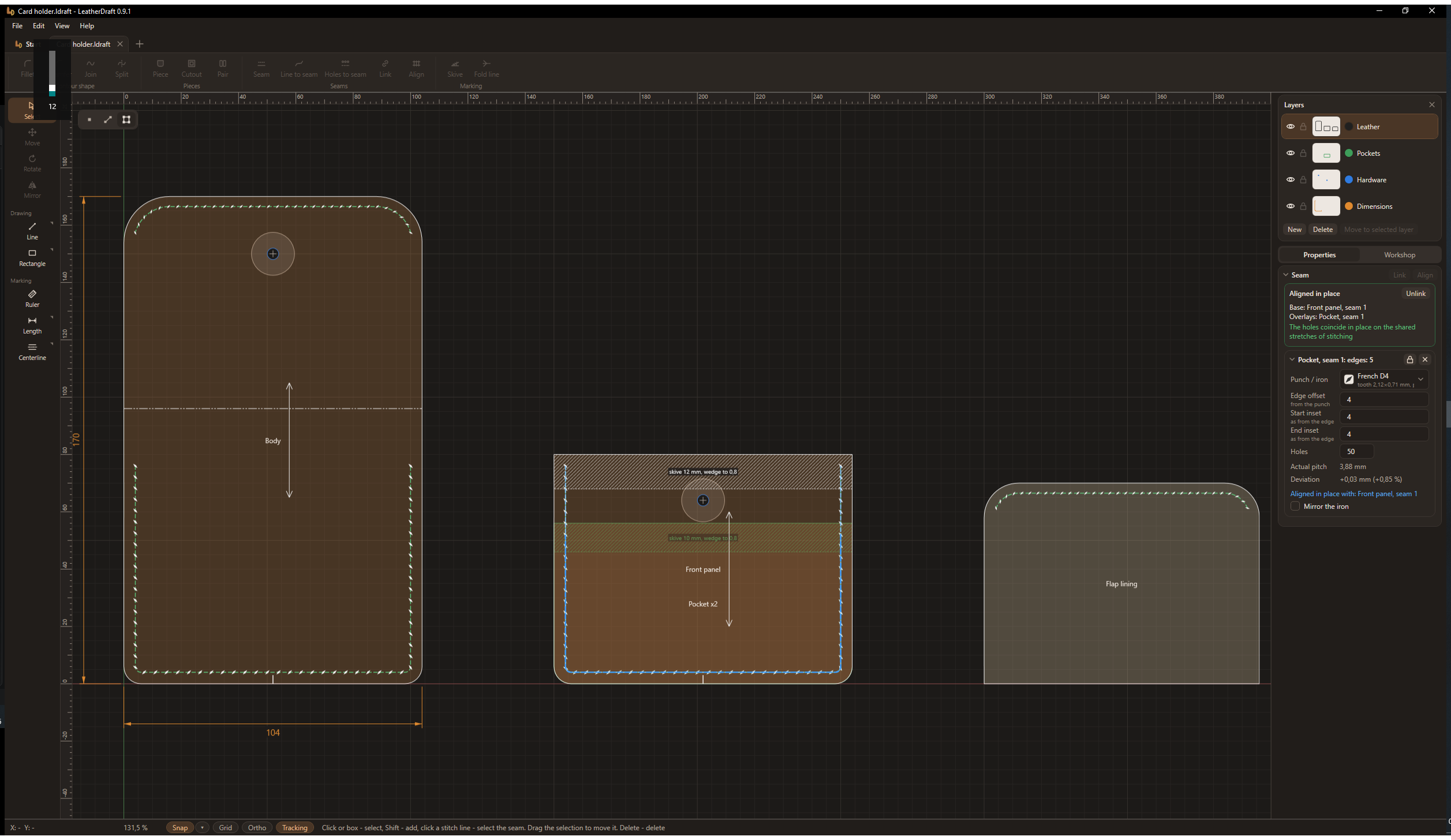
Both sides that are sewn together get the same number of holes. Overlay pieces are aligned in place: the pocket holes land on the panel holes.
Marking
Alignment notches, fold lines, skiving, grain direction arrow, dimensions and center lines.
Hardware
Snaps, rivets, eyelets, slots. The two halves of a snap are linked into a pair, and your punches, leathers and hardware are kept in your workshop.
Drawing
Lines, contours with smooth curves, arcs, circles, filleted and chamfered corners, lengthen and offset, snaps and exact values typed in.
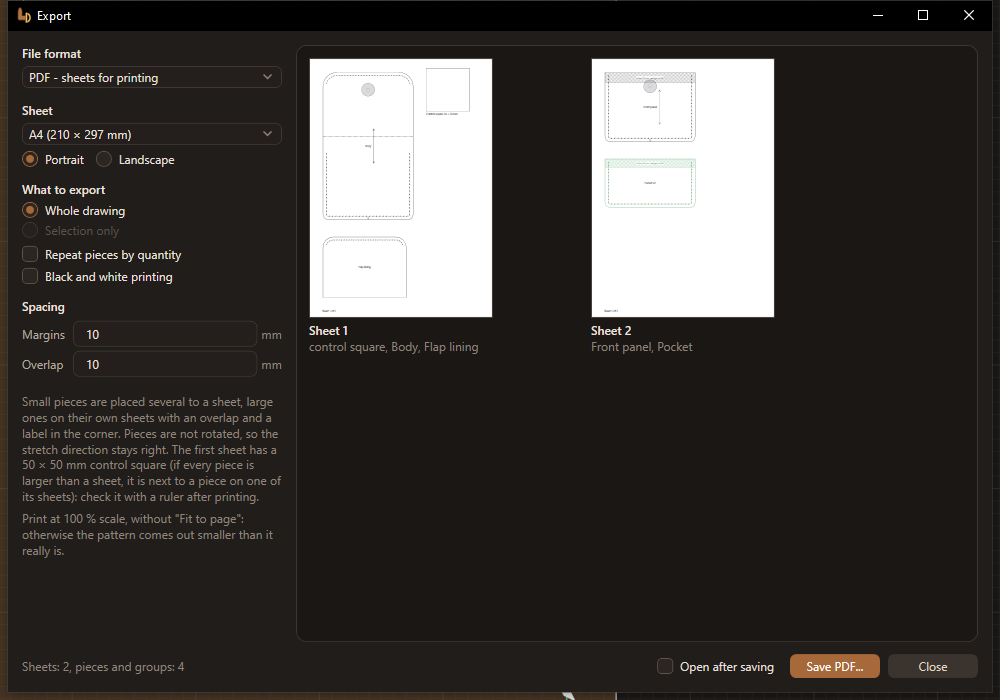
Printing and export
Full-size printing on A4 and other sheets with overlap and a control square. PDF, SVG and DXF for lasers and plotters, opening DXF, DWG and SVG.
What it looks like
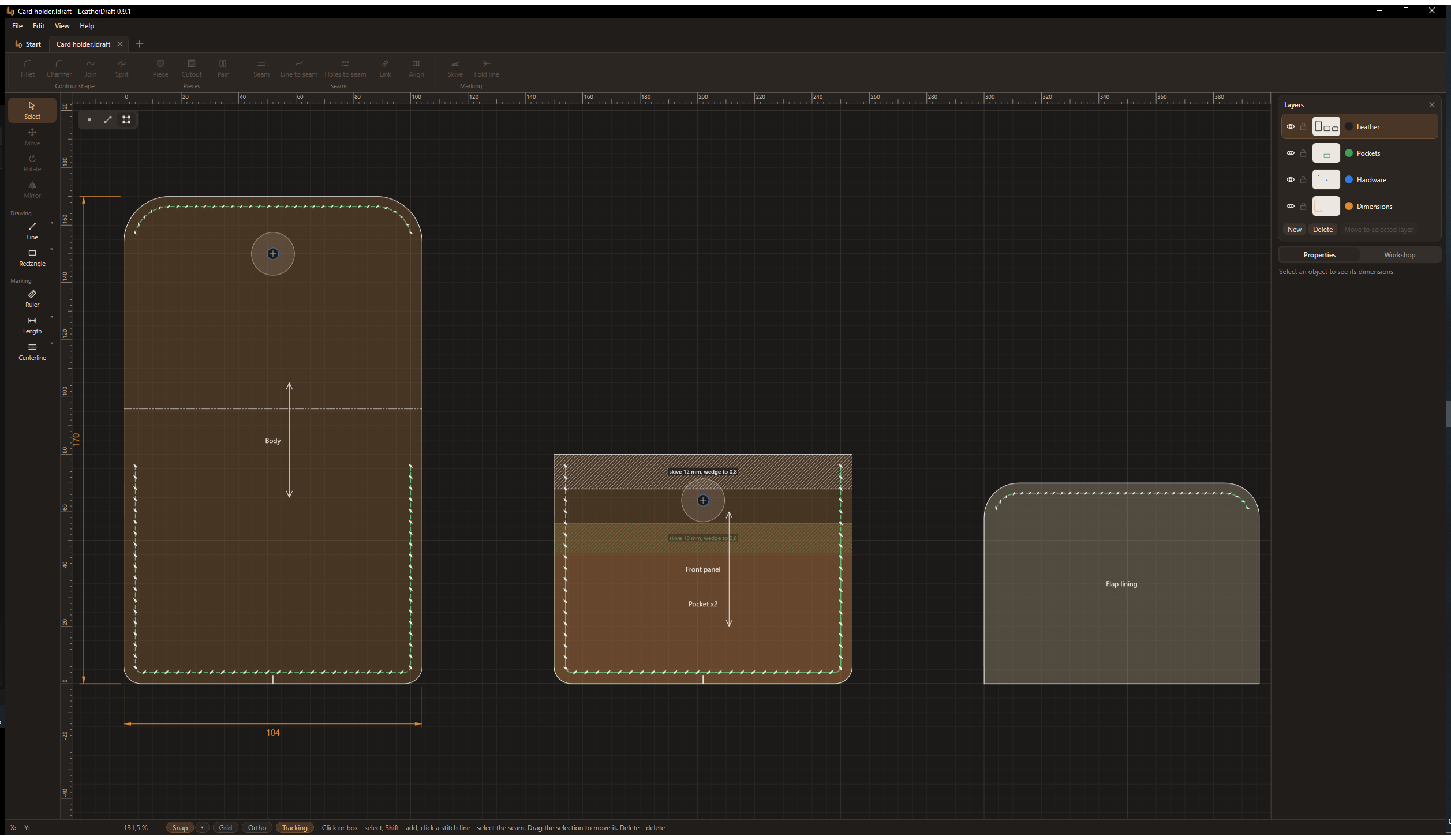
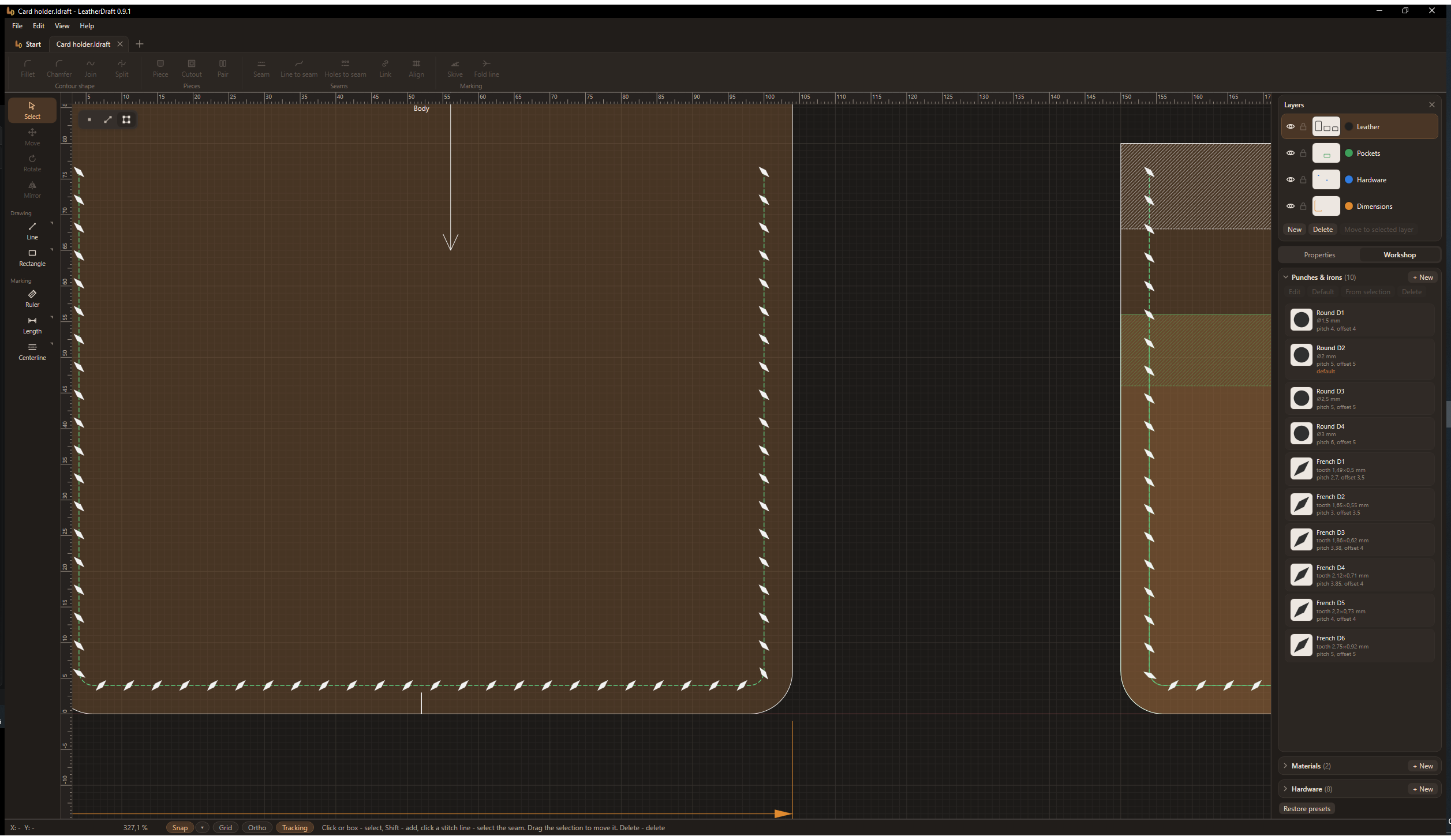
Screenshots from the program, dark theme. Click a screenshot to open it in full.
Download
The program is free, including for work you sell. The patterns you make with it belong to you.
Requirements
- Windows 10 or 11, 64-bit.
- About 20 MB on drive C. If .NET 8 is not installed on the computer, the installer adds it - about 160 MB more.
- No administrator rights are needed.
- The internet is needed only to install .NET 8 and for updates; you can work offline.
- Any printer for printing patterns.
Installation
- Download the installer and run it. The program is installed for your user account.
- Windows may show a "Windows protected your PC" window: the program does not have a paid digital signature yet. Click "More info", then "Run anyway".
- If .NET 8 is not installed on the computer, the installer downloads and installs it.
Updates arrive on their own: once a day the program checks for a new version and installs it when you close the program. You can turn this off in the settings, in the "Updates" section. Uninstall the program like any other: Windows "Settings" - "Apps" - KozhaBench. Your drawings stay where they are.
Found a bug or have an idea
Write in Issues. To make the bug easier to find, include the program version (it is in the window title), what you were doing and what went wrong. If the program reported an error, attach the log %LocalAppData%\KozhaBench\logs\errors.log, and if the bug is related to a drawing - the .kbench file.